In Onshape, syn.bike runs as a panel inside your document. Load a bike into the panel and sync its values into the document's syn Variables Variable Studio.
Connect Your Onshape Account
The connection belongs to the syn.bike account you are signed in with.
- Launch the syn.bike app from Onshape. Your browser opens a syn.bike page titled Connect Onshape, after the sign-in page if you are not signed in. It shows which syn.bike account will be connected.
- Click Connect Onshape Account, and approve the access Onshape asks for, which lets syn.bike read and write your documents.
- When the page reads Account Linked Successfully, click Return to Onshape.
Finish the approval within 10 minutes of clicking the button. If it runs out, or you decline, the page reads Connection Failed with a Try Again button.
Load a Bike in Onshape
When no bike is loaded, the panel shows Load Points from Model. Pick a database tab, fill in Brand, Model Year, Model Name and Version, and click Load. The folder icon opens a bike file from your computer instead. The panel loads existing bikes only, so create new ones in the main app.
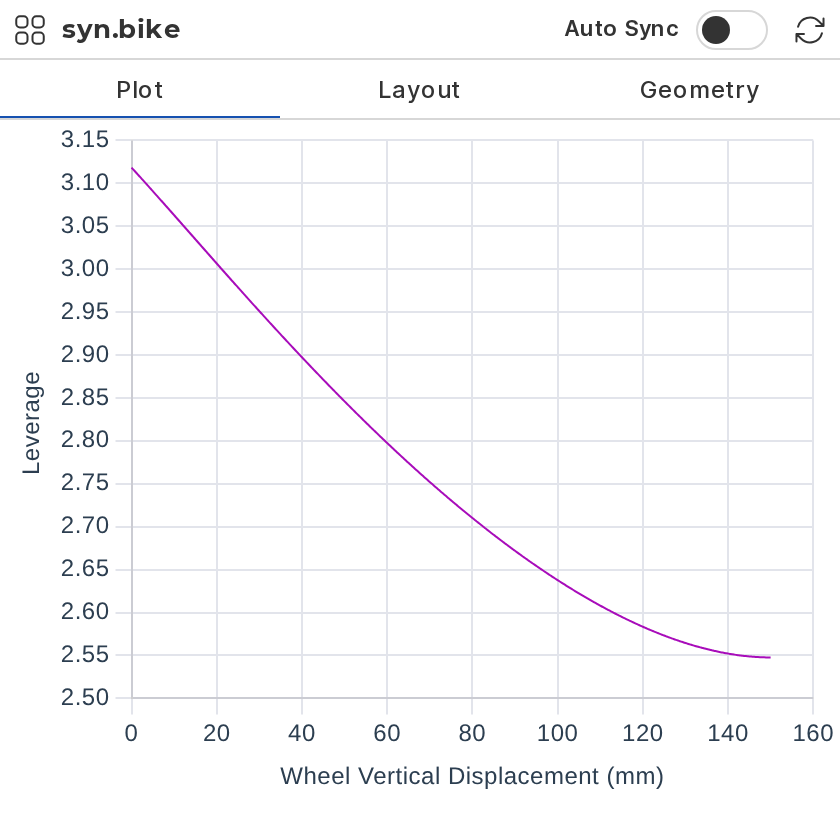
The panel has three tabs: Plot shows the kinematic charts, Layout holds the same sections as the main app's Layout tab without Bike Info and Access Controls and Export, and Geometry holds the geometry table.
Undo is Ctrl+Z and redo is Ctrl+Y. The menu at the top left has Switch Bike (Ctrl+O) and Save Bike (Ctrl+S). Edits you make in the panel sync to Onshape without being saved, so save when you want the main app and your team to see them.
If an Onshape Sync Fails
If a sync asks you to authorize the Onshape plugin, check that you are signed in to the syn.bike account you connected, then go through Connect Your Onshape Account again. The sync icon is disabled when the panel was not opened from an Onshape document. For what a sync message means, see Messages.
Sync and Draw in Onshape
Syncing and drawing are covered on the CAD Sync page:
- Sync to the Variable Studio, including Auto Sync.
- Use the Variables in Onshape.
- Draw in Onshape, for Draw Linkage Points.
- Geometry Variables and the other variable lists.