Data Acquisition
syn.bike's data acquisition (DAQ) tools load a recording from the logger on your bike and turn its travel-sensor readings into fork, rear wheel and shock travel. The recording comes from a synDAQ logger, the data logger on the bike that records its travel sensors, accelerometers, brakes and GPS to an SD card.
The DAQ page plots that recording: fork and rear wheel travel, shaft speeds, vibration, braking and the GPS route. A recording is the CSV file the logger writes to its SD card. The file is not uploaded.
DAQ Dashboards and Plots explains each plot and how to build your own dashboard. DAQ Settings and Device lists every processing setting with its default.
Open the DAQ Page
Open the app menu (the grid icon at the top left) and choose DAQ. You need to be signed in. The page is available on every plan.
The sidebar has two tabs, each starting with the Dashboard picker and the recording file field. Device shows live readings from a connected logger. Config holds the travel, leverage and processing settings.
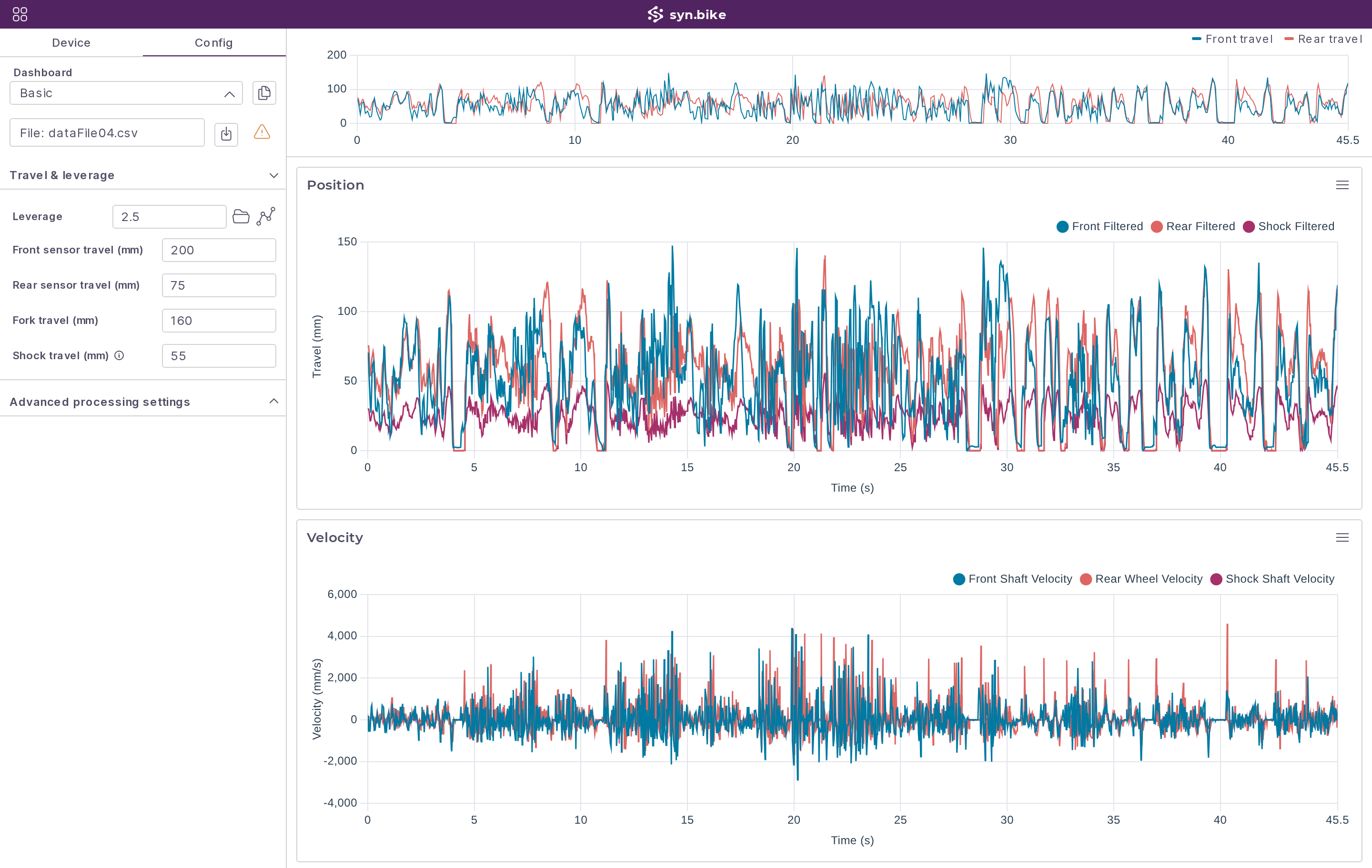
Load a Recording
- Copy the
.csvrecording from the logger's SD card to your computer. - Click the file field at the top of the sidebar (it reads CSV Data File:) and choose the recording.
- Wait while the page shows Loading recording… and then Processing recording…. The field now shows the file name, and the selected dashboard fills with plots.
One recording is open at a time, and choosing another file replaces it.
Two icons appear beside the file field once a recording is loaded. The download icon saves the processed data (see Export the Processed Data). The status icon opens the diagnostics, and changes to a warning when there is something to read before trusting the plots.
Before you read any rear travel numbers, set the travel and leverage. The defaults are placeholders for a 160 mm fork and a 55 mm shock at a leverage of 2.5.
Check the Recording
Click the status icon beside the file field to open Diagnostics. It is the quickest way to find out why a plot looks wrong.
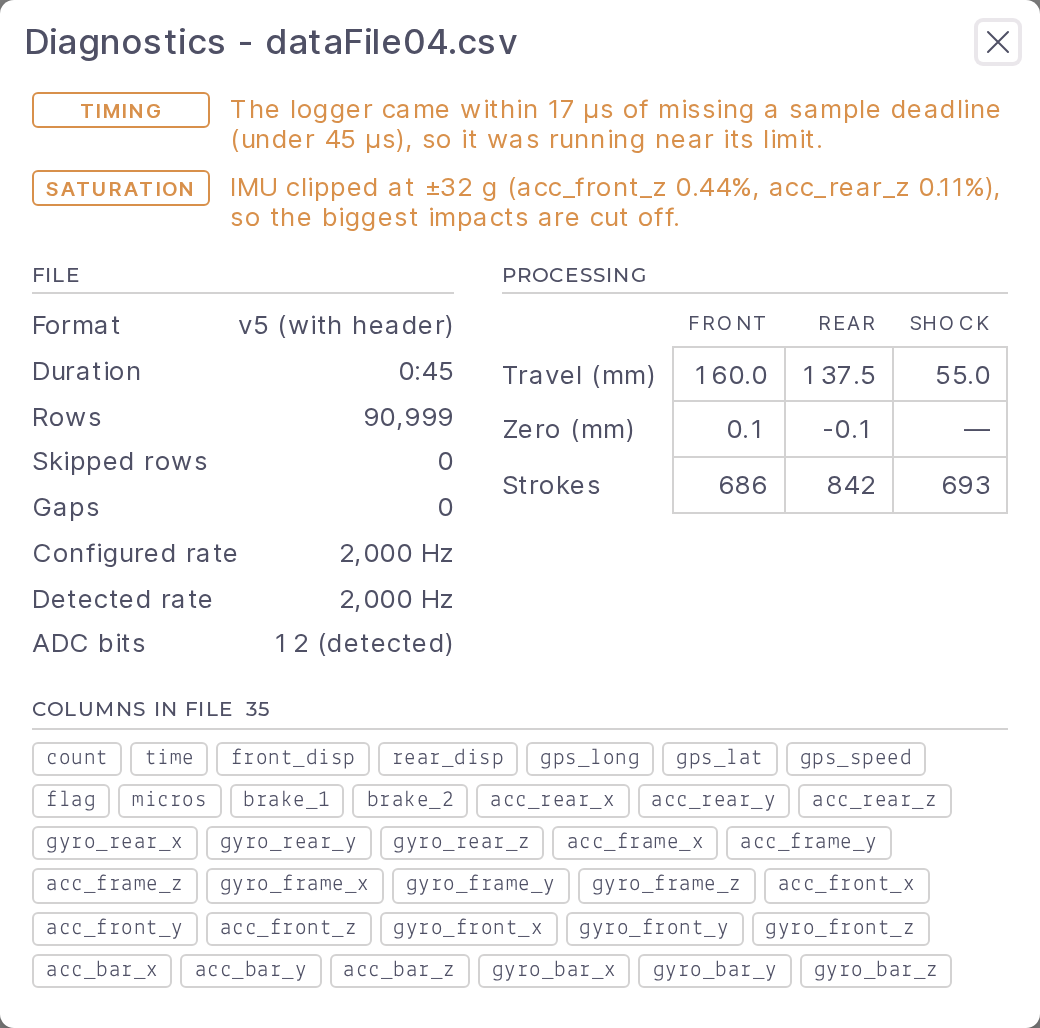
Notices at the top describe anything unusual. The ones you are most likely to see:
| Notice | Example | What it means for the plots |
|---|---|---|
| TIMING | "The logger came within 17 µs of missing a sample deadline (under 45 µs), so it was running near its limit." | No samples were lost. |
| SATURATION | "IMU clipped at ±32 g (acc_front_z 0.44%, acc_rear_z 0.11%), so the biggest impacts are cut off." | Peak accelerations on those channels are understated. |
| SATURATION | "Rear sensor is at its compressed limit for 2.0% of samples, so bottom-outs may be hidden." | The travel sensor ran out of stroke before the suspension did. |
| LEVERAGE | "The shock reached 58.2 mm, but the leverage curve stops at 55.0 mm. Travel past the end of the curve is held at its last value, so rear wheel travel, sag and bottom-outs read low. Check the rear sensor travel and zero, or use a curve that covers the full shock stroke." | The rear sensor travel or the leverage source does not match the bike. |
Under the notices:
- FILE gives the format, duration, row count, skipped rows, gaps, sample rates and ADC (analog-to-digital converter) resolution.
- PROCESSING shows the total travel used for percentages, the zero offset and the number of strokes found for the front, rear and shock.
- COLUMNS IN FILE lists every column the logger wrote, so you can see whether a sensor was recorded at all.
Set Travel and Leverage
The values under Config > Travel & leverage must match the bike and the sensors that made the recording.
| Field | Default | Set it to |
|---|---|---|
| Leverage | 2.5 |
The average leverage ratio, or load a leverage curve from a file or the leverage from a bike instead. |
| Front sensor travel (mm) | 200 |
The full electrical stroke of the front travel sensor. |
| Rear sensor travel (mm) | 75 |
The full electrical stroke of the rear travel sensor. |
| Fork travel (mm) | 160 |
The fork's travel. Front percentages, sag and bottom-outs are measured against it. |
| Shock travel (mm) | 55 |
The shock stroke. Shock percentages are measured against it, and rear percentages against the wheel travel at this stroke. |
The plots update as soon as you change a value, and the settings are saved to your account.
Use a Single Leverage Number
Type the average ratio into Leverage (above 0, up to 10). Rear wheel travel is the sensor reading multiplied by that number, which assumes the rear sensor is mounted across the shock.
Load a Leverage Curve From a File
Click the first icon beside Leverage (Load leverage curve from file) and choose a CSV file with shock travel in mm in the first column and the leverage ratio in a column headed leverage or lev. If no column has that heading, the fifth column is used.
The kinematics file that the main app downloads from the Layout tab (Download a CSV file of kinematic results) loads as it is.
The file needs at least 2 rows, travel between 0 and 500 mm that never decreases, and leverage between 0 and 10. A file that breaks a rule is refused with the row at fault, for example "Travel decreases at row 14" or "Leverage out of range at row 3 (must be 0–10)".
Load the Leverage From a Bike
The bike you take the leverage from has to be saved to a database first. See Loading and Saving.
- Click the second icon beside Leverage (Load leverage from a bike).
- In Load Leverage From Bike, pick the database (Public, Private or Team) and find the bike by Brand, Model Year, Model Name and Version.
- Click Load.
The Leverage field is replaced by the bike's name, with an X to clear it. Loading a bike also sets Fork travel (mm) and Shock travel (mm) from that bike. The two sensor travel fields stay as you set them.
If the bike has flip chips, choose the setting it was ridden in under Flip chip.
A Shock leverage preview shows the curve in use, as wheel travel per mm of shock stroke. When the bike models a DAQ sensor, a Sensor leverage preview shows wheel travel per mm of sensor travel, and the rear sensor reading is converted through that curve instead.
Model the Sensor on the Bike
A rear travel sensor mounted between the frame and a link, not across the shock, needs its own leverage curve. You get it by placing the sensor on the bike model in the main app.
- Open the bike and go to the Layout tab.
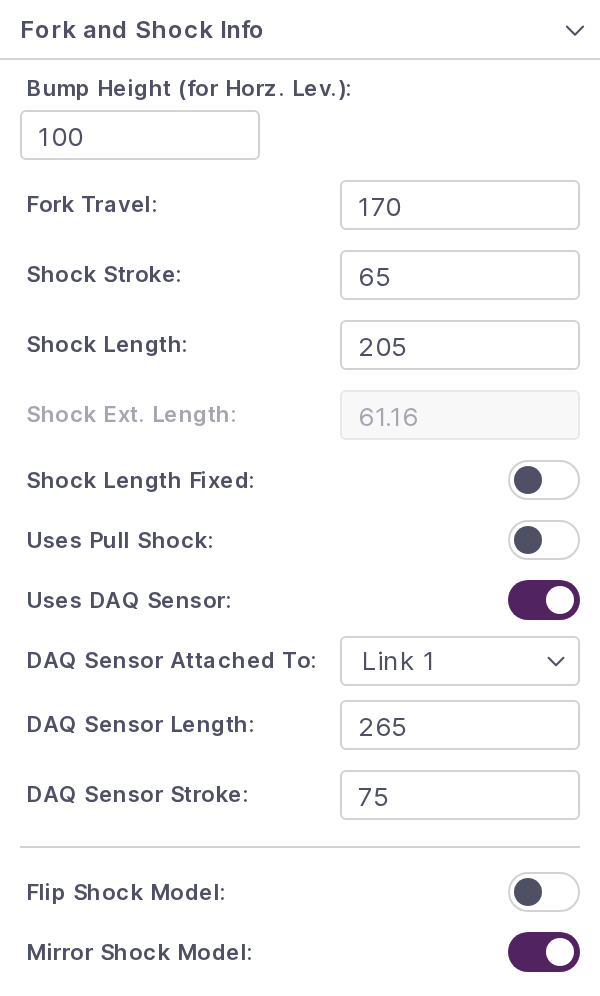
- Open Fork and Shock Info and turn on Uses DAQ Sensor:.
- Choose the link the moving end is bolted to in DAQ Sensor Attached To:.
- Enter DAQ Sensor Length: (the eye-to-eye length at full extension, default
265mm) and DAQ Sensor Stroke: (default75mm). - Place the two mounts. They appear under Kinematic Points as DAQ Sensor 1, which is always on the frame, and DAQ Sensor 2, which is on the link you chose. Dragging DAQ Sensor 2 swings it around DAQ Sensor 1 at the sensor length.
- Save the bike, then load it on the DAQ page.
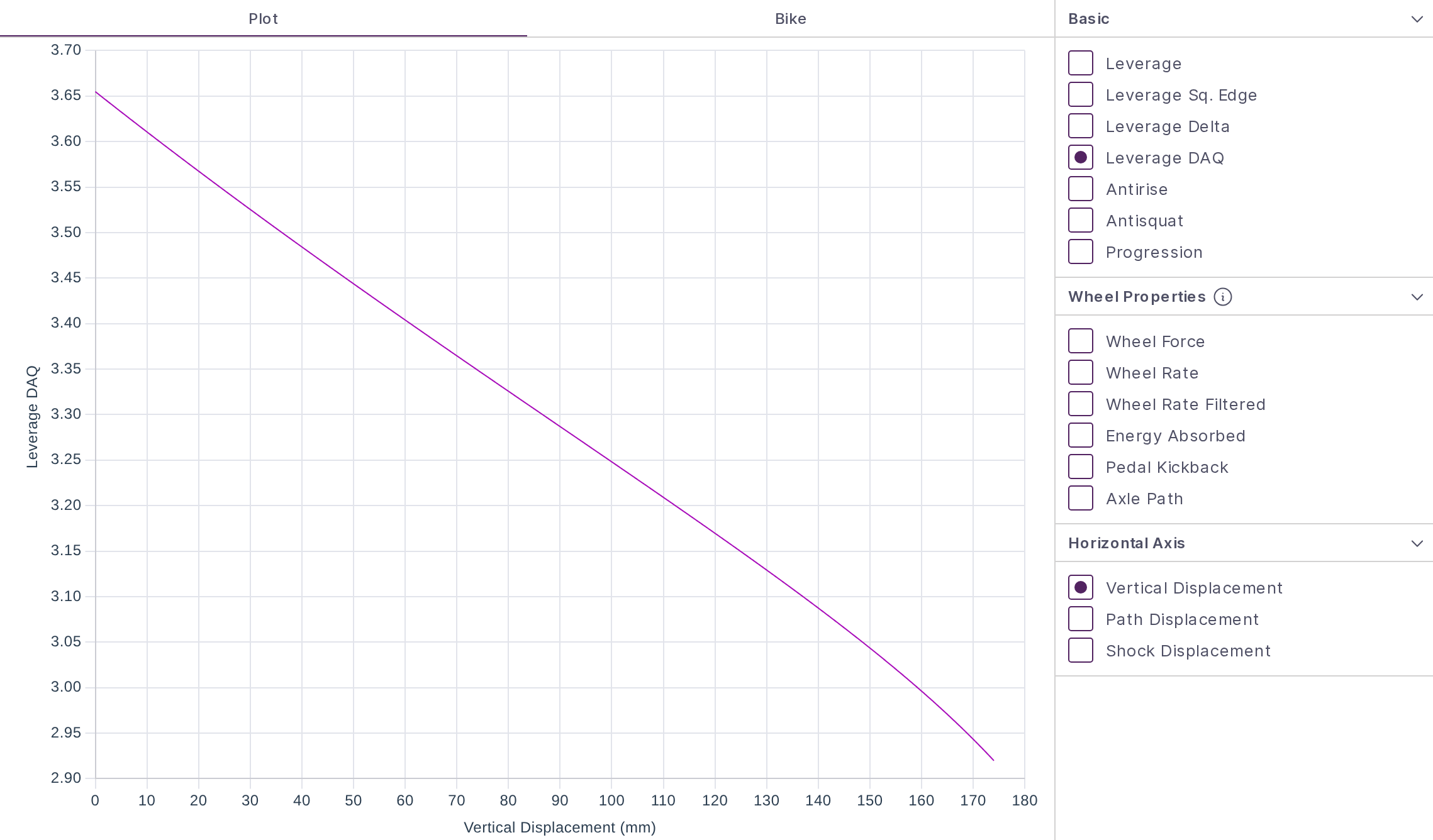
With the sensor turned on, the chart list's Basic group gains Leverage DAQ: wheel travel per mm of sensor travel, plotted against wheel displacement.
The info panel on the Bike tab also adds DAQ Travel after Wheel Travel and Shock Travel, at the current position and at full stroke. Compare the full-stroke figure with the sensor's own stroke to confirm the sensor will not bottom before the suspension does.
For placing points in general, see Creating Linkages. If you drive the model from CAD, the two sensor mounts are points 14 and 15 in the linkage point variables.
How Sensor Travel Becomes Wheel and Shock Travel
Each sensor is zeroed at the most extended position it reached in the recording. If the suspension never tops out (reaches full extension), travel reads low, so start logging with the bike unweighted or include a moment with both wheels off the ground.
| Channel | What it is | How it is derived |
|---|---|---|
| Front | Fork travel | The front sensor reading, one to one. |
| Rear | Vertical rear wheel travel | The rear sensor reading multiplied by the Leverage number, or mapped through the loaded curve or bike. |
| Shock | Shock stroke | The rear sensor reading. With a bike that models a DAQ sensor, the wheel travel mapped back through the bike's shock curve. |
Rear percentages (dynamic sag, bottom-outs, the 30% marker on travel histograms) are measured against the wheel travel reached at full shock travel. With the defaults that is 2.5 × 55 = 137.5 mm.
Export the Processed Data
Click the download icon beside the file field (Download processed CSV) to save every processed channel at the full sample rate. The first column is Time (s), followed by one column per channel with its label and unit in the header. The file is named after the recording with -processed.csv on the end.
The export always covers the whole recording, whatever time range is selected.
To save a single plot as an image, see Export a Plot.
When a Recording Does Not Load
| Message | What to do |
|---|---|
"file.csv is not a synDAQ recording. Choose a CSV file the synDAQ logger saved to its SD card." |
Pick the recording from the SD card. |
"file.csv is a leverage or kinematics file, not a synDAQ recording. To use it, load it as the leverage curve under Config → Travel & leverage." |
Load it with Load leverage curve from file instead. |
| "Fix the leverage source to process this recording" | Fix or clear the leverage curve or bike under Travel & leverage. Its error is shown beside it. |
| "This bike is not in your library any more. Pick another bike." | The bike was deleted or is no longer shared with you. Load another bike, or clear it and enter a leverage number. |
| "The chip configuration "name" is no longer on this bike. Pick one again." | Choose the chip again in Flip chip. |
| "Wheel travel decreases as DAQ sensor travel increases (at 12.0 mm), so it cannot be mapped" | Move the sensor mounts in the main app so the sensor moves one way through the whole travel. |