The Workspace
The workspace is the main syn.bike window: you edit a bike in the left sidebar, read its chart and drawing in the center, and choose the plotted metric in the right sidebar. Open bikes sit in a row of chips underneath.
On a touch screen, press and hold where this page says right-click, double-tap where it says double-click, and pinch with two fingers to zoom the bike view.
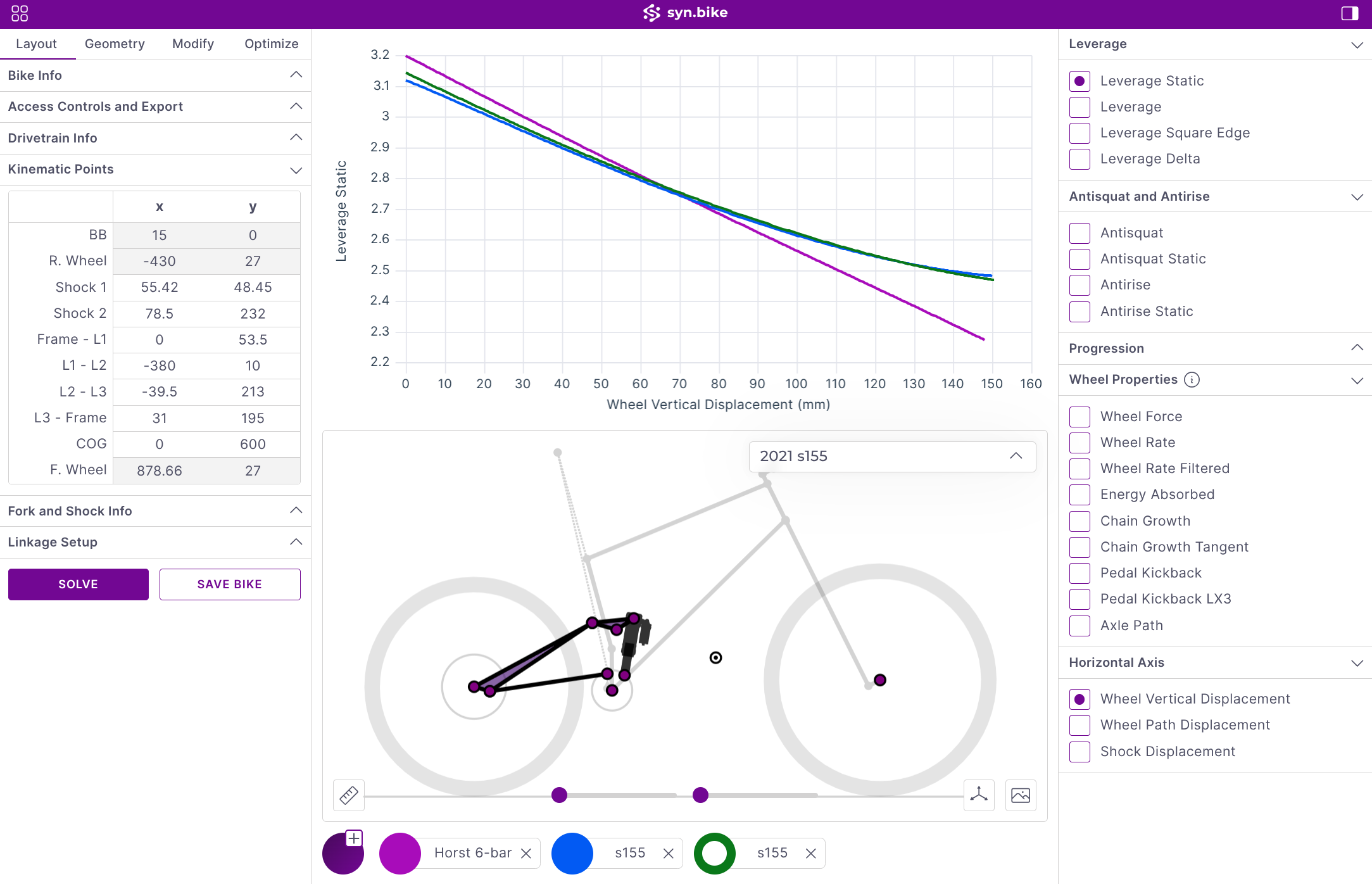
Left Sidebar
The left sidebar edits the selected bike. With no bike open, it shows a single Load/Create Bike button instead.
| Tab | What it holds |
|---|---|
| Layout | Bike name and version, access and export, drivetrain, kinematic points, fork and shock, and linkage setup. See Creating Linkages and Drivetrain. |
| Geometry | The geometry chart for each frame size. See Creating Linkages. |
| Outlines | The drawn shape of the frame, fork, shock and components. See Outlines. |
| Modify | Flip chips and component changes. See Flip Chips and Modifiers. |
| Optimize | Optimization studies. See Optimizer. |
Bike Chips
Every open bike has a chip under the chart, in the color of its curves. Up to 18 bikes can be open at once.
- Click the colored circle to select the bike for the left sidebar and the bike view.
- Click the bike's name to open its spring setup panel. See Springs.
- Click × to close the bike. A saved bike stays saved.
- Click the round plus button to the left of the chips to open the load panel. See Loading and Saving.
Workspace Charts
The chart plots one metric at a time against travel, with one curve per open bike. Hover over a curve to read its value.
Choose What to Plot
Click a metric in the right sidebar to plot it. Horizontal Axis is a separate choice that sets what the curve is plotted against. Kinematics Definitions explains each metric.
| Group | Choices |
|---|---|
| Basic | Leverage, Leverage Sq. Edge, Leverage Delta, Leverage DAQ, Antirise, Antisquat, Progression |
| Wheel Properties | Wheel Force, Wheel Rate, Wheel Rate Filtered, Energy Absorbed, Pedal Kickback, Axle Path |
| Horizontal Axis | Vertical Displacement, Path Displacement, Shock Displacement |
- Leverage DAQ is listed only while an open bike uses a DAQ sensor.
- Wheel Force, Wheel Rate, Wheel Rate Filtered and Energy Absorbed plot nothing without a spring on the bike.
- With Static Mode on, Leverage, Antirise, Antisquat and Progression are listed as Leverage Static, Antirise Static and so on.
Chart Menu
Right-click the chart to open its menu.

- Show All Values in Tooltip lists every open bike's value, not only the curve under the pointer.
- Bike Color changes the color of the selected bike.
- Antisquat Display appears while an antisquat curve is plotted. See Drivetrain.
- The Optimize Targets fields belong to the Optimizer.
Bike View
The bike view draws the selected bike to scale.
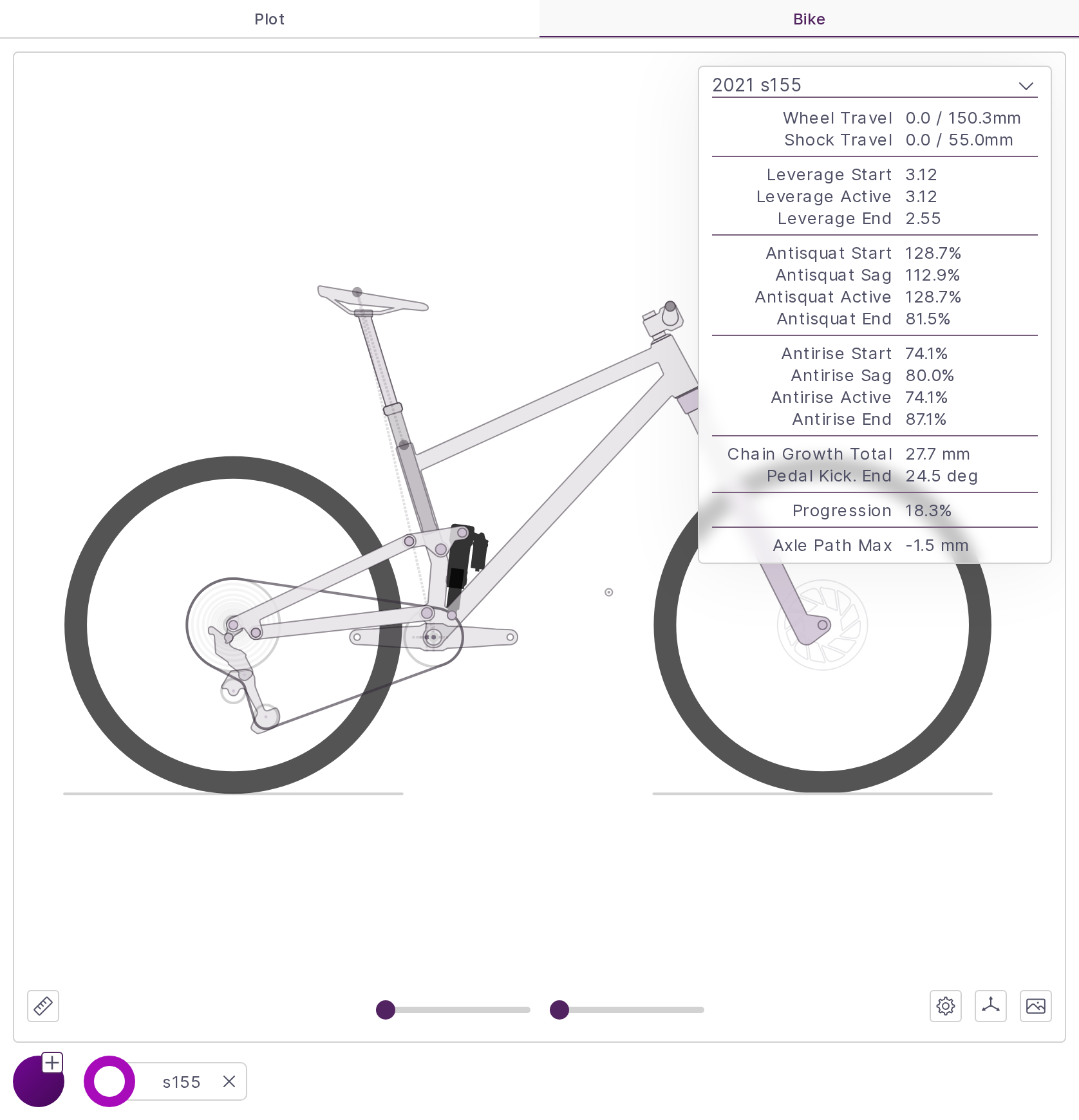
Scroll to zoom around the pointer, and drag the background to pan. Drag a linkage point to move it. See Creating Linkages.
Travel Sliders
The left travel slider under the bike compresses the rear suspension, and the right travel slider compresses the fork. The Active rows in the metrics panel follow the left travel slider.
Bike View Menus
The bike view's menus open from four buttons beside the travel sliders.
| Button | What it opens |
|---|---|
| Ruler (far left) | Measure mode. See Measure a Distance. |
| Gear | Chain, crank, seatpost and brake rotor display, Frame Size:, Active Gear: and Dropper Travel:. See Drivetrain and Dropper Posts. |
| Axes | The coordinate system and display options. See Coordinate System and Display Options. |
| Picture | A background image to trace a linkage from. See Creating Linkages. |
Measure a Distance
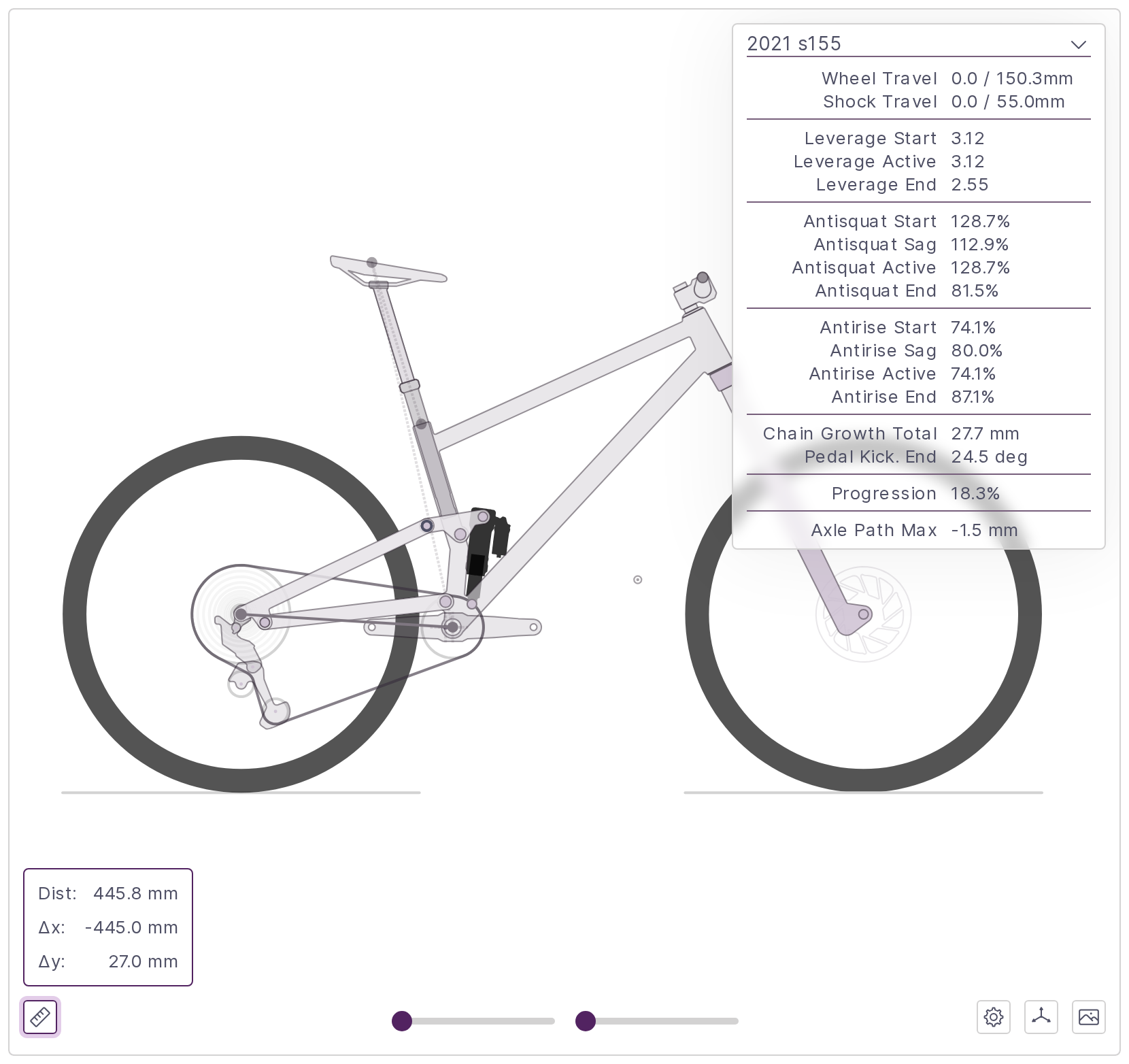
- Click the ruler button.
- Click the start point, then the end point. A click near a linkage point snaps to it.
The readout above the button shows Dist:, Δx: and Δy: in mm. A third click starts a new measurement. Press Esc, or click the ruler again, to leave measure mode.
Coordinate System and Display Options
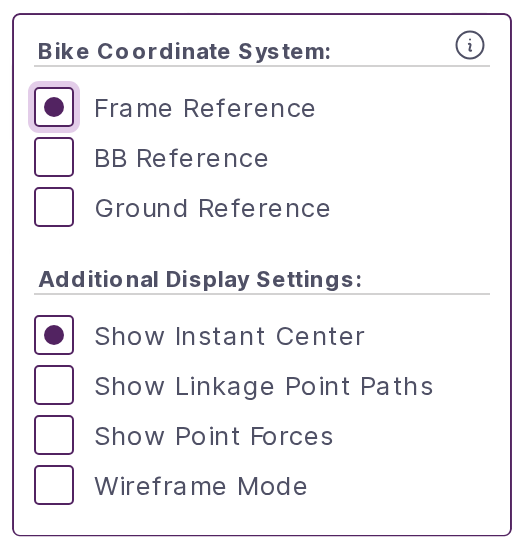
The axes button sets how the bike moves when you drag the travel sliders.
| Bike Coordinate System: | What stays still |
|---|---|
| Frame Reference | The front triangle. The rear wheel moves up into the frame. |
| BB Reference | The bottom bracket. The ground rises to compress the wheels. |
| Ground Reference | The ground. The wheels stay on it and the frame sinks and pitches, as it does on the trail. This is the default. |
Kinematics Definitions explains which metrics are measured in which system.
Under Additional Display Settings: you can turn on Show Instant Center (on by default), Show Linkage Point Paths, Show Point Forces and Wireframe Mode. The instant center is the point the rear wheel is pivoting about at the current travel.
Metrics Panel
The panel at the top right of the bike view lists headline numbers for the selected bike. Click its title to fold it away.
- Start rows are at full extension, End at the end of travel, Active at the position of the rear travel slider, and Sag at the shock sag set in the bike's spring setup.
- Wheel Travel and Shock Travel read current / total.
- A value that cannot be computed shows as
-.
Choose the rows with Info Panel Items: in Settings.
Bike View Warnings
The bike view lists problems with the bike under WARNING:. Each message is explained on the page for its feature:
- Linkage and solve messages: Creating Linkages
- Chain and gearing messages: Drivetrain
- Seatpost messages: Dropper Posts
Solving and Undo
syn.bike solves the bike again after every change, and the chart and bike view update with it. If the chart looks out of step with the inputs, click Solve at the bottom of the Layout tab or Refresh Solve in the app menu (Ctrl+E).
Ctrl+Z undoes the last change to the bike and Ctrl+Y redoes it.
App Menu
The grid button at the top left opens the app menu.
- Open File and Refresh Solve, from the main window.
- The other pages: Linkage (this window), Spring, DAQ, Files, Account, Team, Agent Access, Settings and Help.
- Messages, Left Sidebar, Right Sidebar, Dark Mode and Logout.
Hide a sidebar to give the chart and bike view the full width.
App Settings
Settings in the app menu has two sections. Changes follow your account between devices.
General Settings
The General section of Settings sets the screen layout, Static Mode, the metrics panel rows, the antisquat display and whether bikes from outside your domain are refused.
| Setting | Options | What it does |
|---|---|---|
| Screen Style: | Single, Stacked, Side by Side |
Single shows the chart and the bike view on separate Plot and Bike tabs. Stacked puts the chart above the bike view. Side by Side puts the chart to its left. |
| Static Mode: | No, Yes |
Yes draws Leverage, Antirise, Antisquat and Progression from their static curves, on the charts and in the metrics panel. Static curves treat the frame as fixed, like a bike clamped in a stand. The standard curves follow the bike as it sags, which is closer to real riding. Leverage Sq. Edge and Leverage Delta are the same either way. See Kinematics Definitions. |
| Info Panel Items: | A list of rows | Picks the rows of the metrics panel, grouped as Travel, Leverage, Antisquat, Antirise, Chain / Pedal, Other, Axle Path, Wheel Force and Wheel Rate. |
| Antisquat Display: | Full Sweep, Active Gear |
Whether antisquat is drawn across the whole cassette or for the active gear only. See Drivetrain. |
| Block External Messages: | No, Yes |
Yes refuses bikes sent to you from an email address outside your own domain. |
Unit Settings
The Units section of Settings sets the units used in the spring setup panel: Spring Rates: in lb/in or N/mm, Pressure: in psi or bar, Height: in in or cm, and Weight: in lb or kg. Springs explains how values typed in the other unit are converted.
Keyboard Shortcuts
On a Mac, use Cmd in place of Ctrl.
| Shortcut | Action |
|---|---|
Ctrl+O |
Open a bike file from your computer |
Ctrl+E |
Solve the bike again |
Ctrl+Z |
Undo |
Ctrl+Y or Ctrl+Shift+Z |
Redo |
Ctrl+B |
Show or hide the left sidebar |
Ctrl+Shift+B |
Show or hide the right sidebar |
Ctrl+D |
Switch between light and dark mode |
W / Q |
Select the next / previous point on the bike view |
| Arrow keys | Move the selected point 0.5 mm |
Esc |
Clear the measurement and leave measure mode |
The desktop app adds shortcuts for saving files and zooming.