Springs
A bike needs a spring before syn.bike can plot Wheel Force, Wheel Rate, Wheel Rate Filtered and Energy Absorbed. Without one, those four charts stay empty.
Springs do not need a paid plan.
Spring Types
- Measured is a force-versus-displacement curve for a real shock, loaded from the spring database: shared springs in Public, plus anything you or your team have saved. It can hold several curves, one for each volume spacer configuration.
- Simple Coil is a straight line: force equals spring rate times shock displacement. It needs no data.
Set Up a Spring on a Bike
Click the bike's name on its chip below the plot. The spring setup panel opens above the chip.
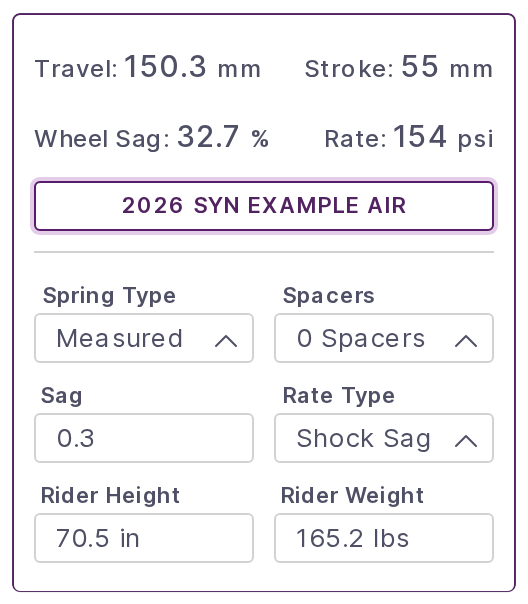
For a coil, set Spring Type to Simple Coil and you are done.
For a measured spring:
- Click Load Spring.
- Pick the database to search: Public, Private, or Team if you belong to a team. The panel opens on Private.
- Narrow the list with Brand, Year, Model, Shock Length and Shock Stroke. Once only one spring is left, the remaining fields fill in.
- Click Load.
The button now shows the spring's name. Click it again to swap the spring. Loading sets Spring Type to Measured and selects the first spacer curve.
If the filters still match several springs, or none, Load shows Invalid Search Parameters.
Setup Fields
| Field | What it does |
|---|---|
| Spring Type | Measured or Simple Coil. |
| Spacers | Which curve of a measured spring to use. Shown only when the spring has more than one. |
| Rate Type | How the pressure or spring rate is decided. Its three settings are listed after this table. |
| Sag, Pressure or Spring Rate | The value that goes with the rate type: a sag target, or a fixed air pressure or coil rate. Sag is how far the suspension compresses under the rider's weight, as a fraction of its travel. |
| Rider Weight | Rider weight used to work out the load on the rear wheel. |
| Rider Height | Stored with the bike. It does not change the spring result. |
Rate Type has three settings.
| Rate Type | You enter | syn.bike works out |
|---|---|---|
| Shock Sag | Sag as a fraction of shock stroke | The pressure or rate that gives that sag, and the matching wheel sag |
| Wheel Sag | Sag as a fraction of vertical wheel travel | The pressure or rate that gives that sag, and the matching shock sag |
| Fixed Rate | Air pressure, or coil spring rate | Where the bike sags with that setting |
A new bike starts on Measured, Shock Sag and a Sag of 0.3.
The four readouts at the top of the panel show the result:
- Travel is the vertical wheel travel, in mm.
- Stroke is the shock stroke the spring is working over, in mm. If the loaded spring has a shorter stroke than the bike's shock, it shows the spring's stroke and the wheel curves stop there.
- Rate is the pressure or spring rate in use.
- The fourth is the sag you did not type: Wheel Sag when the rate type is Shock Sag, and Shock Sag otherwise.
Typing Values and Units
Type a unit after the number and it is converted for you. 12 bar in the Pressure field shows as 174 psi when your pressure unit is psi. Leave the unit off and syn.bike guesses from the size of the number:
| Field | Units you can type | With no unit |
|---|---|---|
| Sag | Fraction or percent | 0.3 and 30 both mean 30% |
| Pressure | psi, bar |
50 or less is read as bar, anything higher as psi |
| Spring Rate | N/mm, lb/in |
150 or less is read as N/mm, anything higher as lb/in |
| Rider Weight | kg, lb, N |
Under 110 is read as kg, otherwise lb |
| Rider Height | mm, cm, m, in, ft, or feet and inches such as 5'10 |
Guessed from the size of the number |
A value that cannot be read, such as a negative number, turns the field red and the previous value stays in use.
The units the panel displays are set under Settings in the app menu, in the Units section: Spring Rates (lb/in or N/mm), Pressure (psi or bar), Height (in or cm) and Weight (lb or kg).
Note
Rider Weight and Rider Height are saved with the bike, but the loaded spring, rate type and sag are not. After you reload the page or load the bike again, the panel is back to Load Spring.
How the Spring Feeds the Charts
The wheel charts are in the right sidebar under Wheel Properties. Changing any field in the setup panel redraws them straight away.
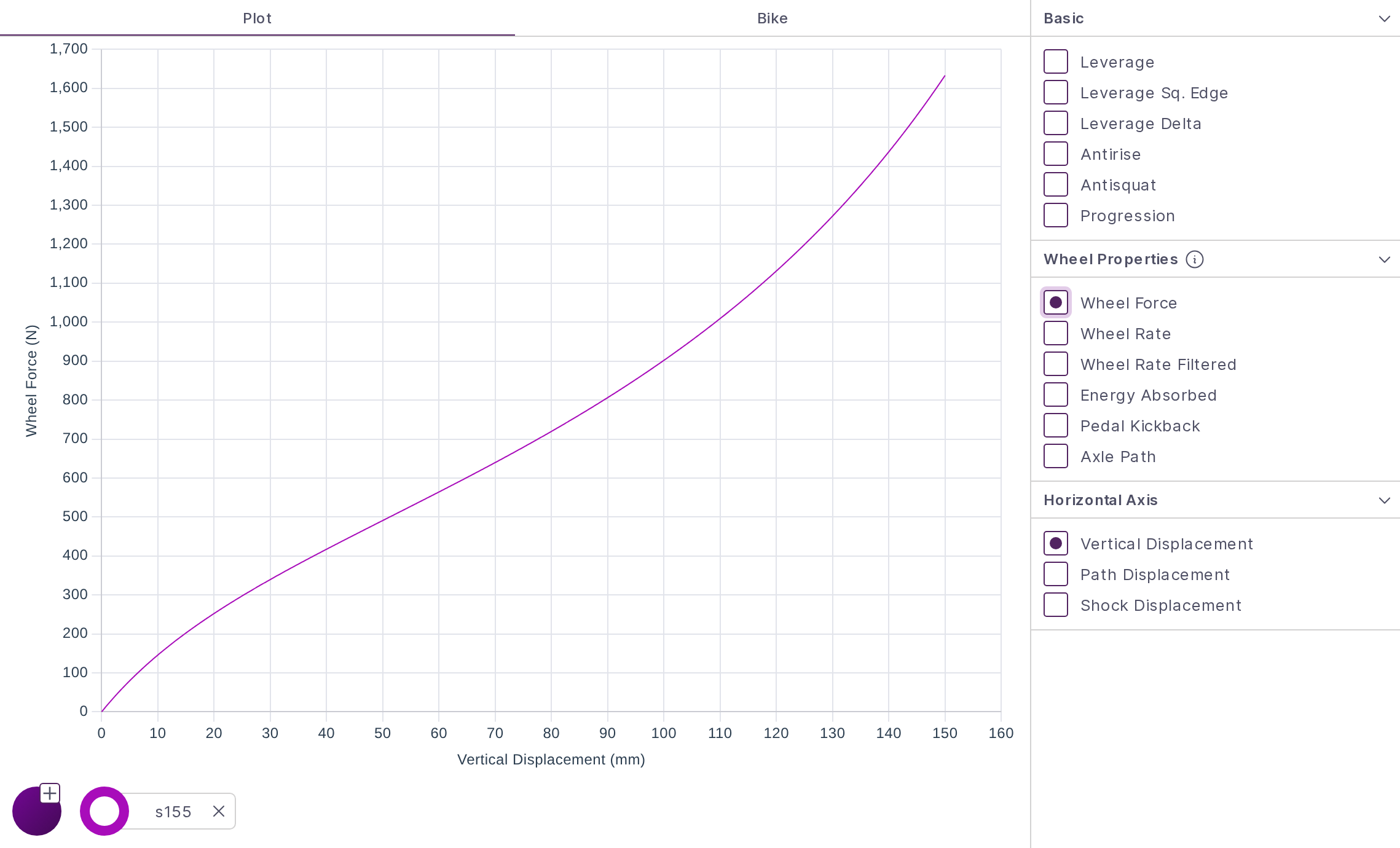
The rear wheel carries a share of the rider's weight, set by where the bike's center of gravity sits between the axles. With a sag rate type, the spring is set so the wheel force at your sag target equals that load. With Fixed Rate, the sag is the travel point where the wheel force balances it.
The spring force depends on the kind of spring:
- For an air spring, the measured curve is scaled by the ratio of your pressure to the pressure the data was measured at.
- For a Simple Coil, force is spring rate times shock displacement.
- For a measured coil shock (data saved with a base pressure of
0), the coil's rate times displacement is added to the measured curve.
| Chart | Units | How it is calculated |
|---|---|---|
| Wheel Force | N | Spring force divided by the leverage ratio at that point |
| Wheel Rate | N/mm | Slope of wheel force against vertical wheel travel |
| Wheel Rate Filtered | N/mm | The same slope, smoothed |
| Energy Absorbed | J | Area under the spring force curve over shock travel |
Create Your Own Spring
If your shock is not in the database, import your own force measurements. Open Spring from the app menu to reach the Create Spring Model page.
Prepare the File
The page reads a comma-separated .csv file of up to 2 MB.
- The first row is a header.
- The first column is shock displacement in mm, starting from 0 at full extension.
- Every other column is one force curve in N. Name each column for its volume spacer configuration, because those names become the choices in the Spacers field.
Displacement (mm),0 Spacers,1 Spacer,2 Spacers
0.0,0.0,0.0,0.0
0.5,108.2,109.3,110.5
1.0,208.5,210.8,213.2
The rows do not need to be evenly spaced or sorted.
For an air shock, measure every curve at the same pressure and write that pressure down. You enter it when you save. For a coil shock, measure the shock without its coil.
Import and Clean the Data
Click the Spring Data File field and choose your file. Until you process the data, the header row also appears as the first row of the table.
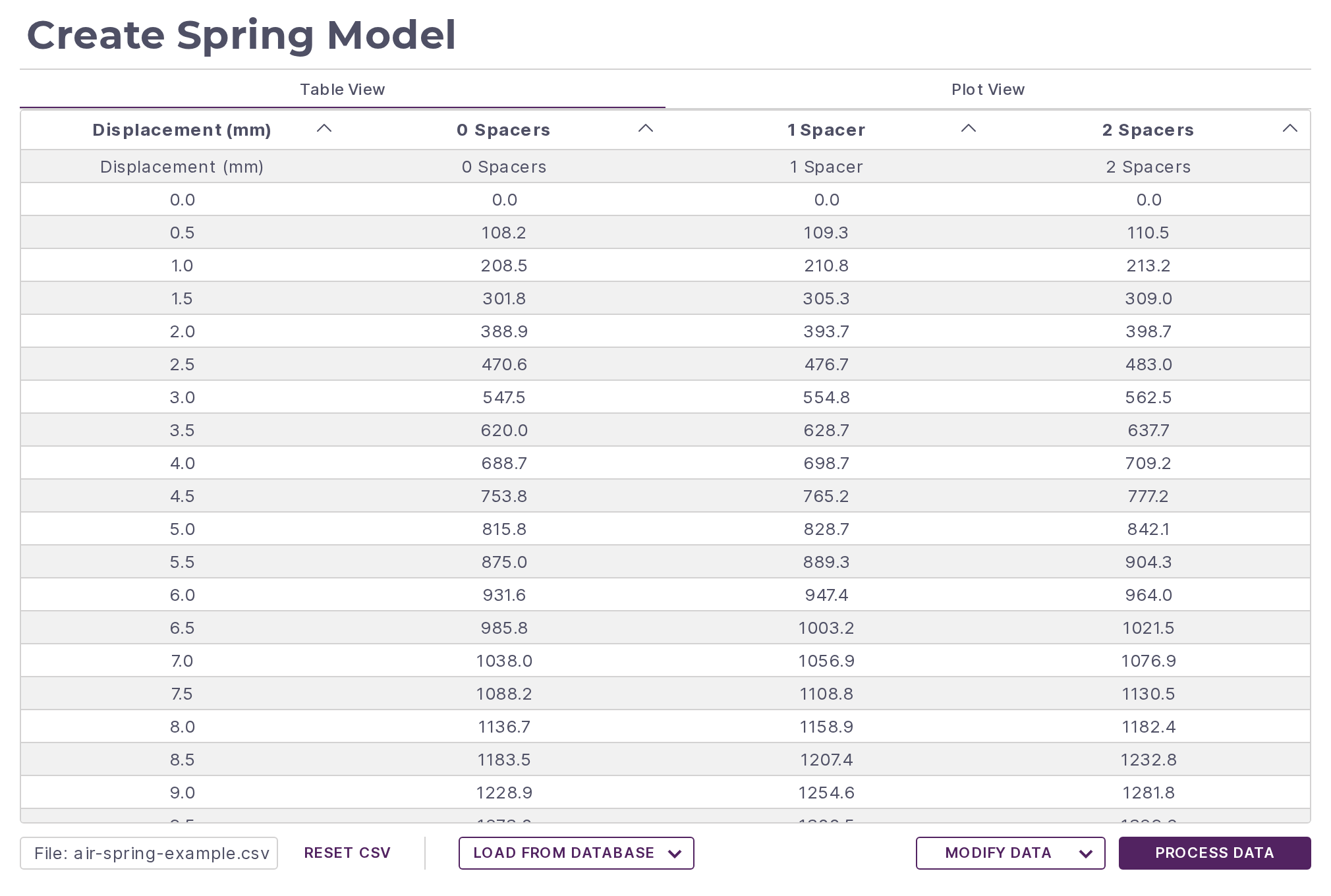
Click a column header to rename, move or delete the curve. Names must be unique and cannot be blank.
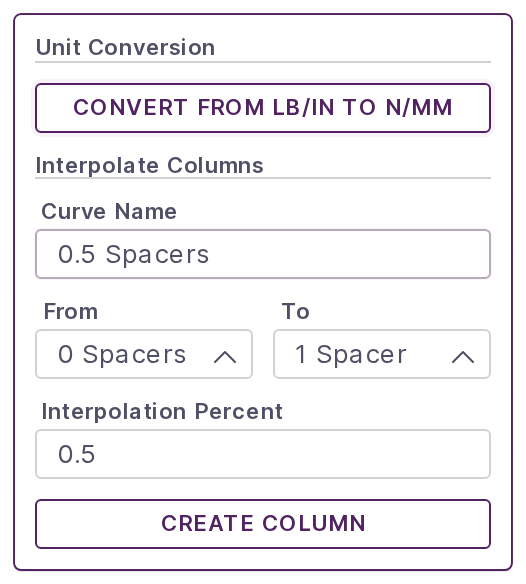
If your data is in inches and pounds, open Modify Data and click Convert from lb/in to N/mm. Displacement is converted from inches to mm and force from lb to N. Converting processes the data as well, so you can skip the next step.
Click Process Data. Rows that are incomplete or not numeric are dropped and the curves are resampled to 0.1 mm steps.
Switch to Plot View and check the curves for spikes or kinks before you save.
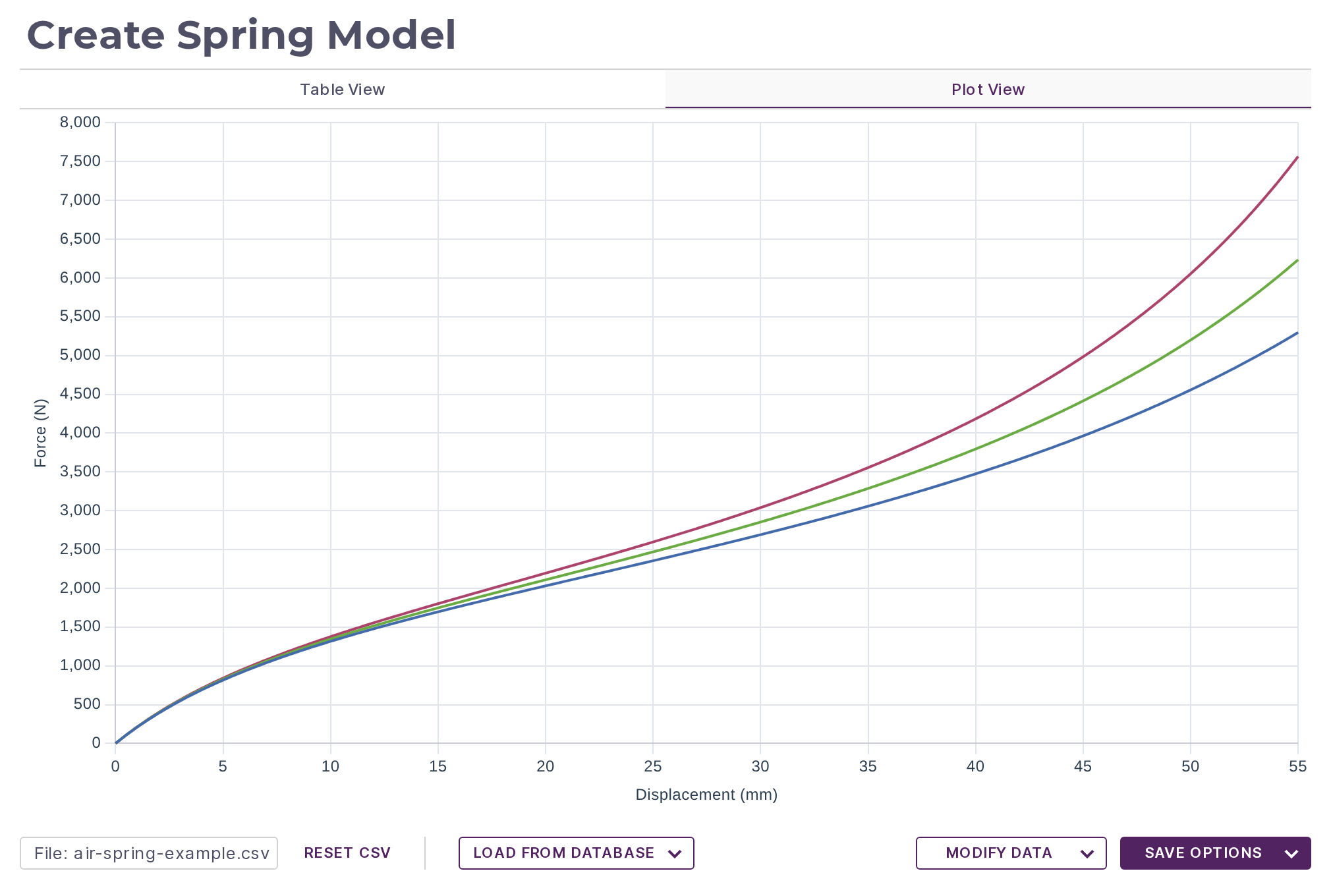
Reset CSV clears the page so you can start again.
Add a Curve Between Two Others
To build a curve between two measured ones, such as half a spacer between 0 and 1 spacers, open Modify Data. Under Interpolate Columns, type a Curve Name, pick the From and To curves, and set Interpolation Percent: 0.5 is halfway between the two. Create Column adds the new curve to the table.
Save the Spring
After processing, the Process Data button becomes Save Options.
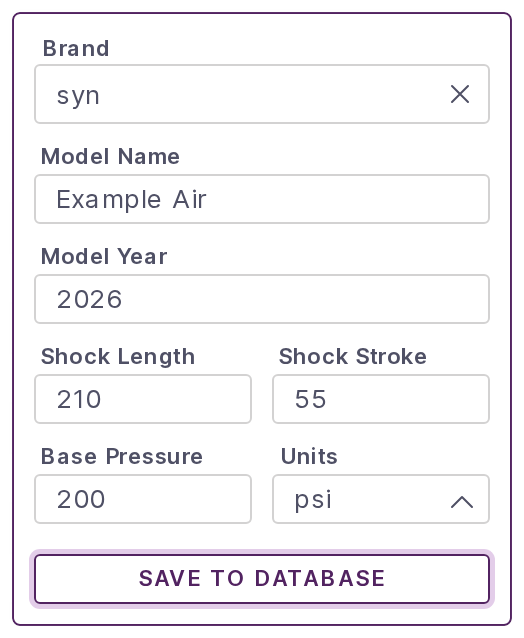
- Brand, Model Name, Model Year, Shock Length and Shock Stroke are what you search by when loading the spring onto a bike. Lengths are in mm. A Shock Stroke longer than the largest displacement in your data is cut back to match the data.
- Base Pressure is the pressure the curves were measured at, in the Units you pick (psi or bar). Enter
0for a coil shock.
Click Save to Database. The button changes to Save New?, or to Overwrite? when the database already holds a spring with the same brand, model name, year, shock length and shock stroke. Click it again to confirm. Saving needs a connection, and the page clears after a successful save.
Your spring saves to your Private database, where only you can see it. With write permission on a team, a Database selector lets you save to Team instead and share the spring with your teammates. The Public database is maintained by syn.bike.
To change a spring you saved earlier, click Load from Database on the same page, edit the table, and save again. Saved springs are listed, and can be deleted, on the Files page.
Spring Messages You May See
| Message | What it means |
|---|---|
Please choose a .csv file. |
The file is not a .csv. Export your spreadsheet as CSV first. |
File size exceeds 2 MB limit. |
The file is too large. Thin out the rows; 0.1 mm spacing is all that is kept. |
Duplicate rate curve name. or Rate curve name is required. |
Shown under a column header. Give every curve its own name. |
No 0 mm row found, so the first row's forces were copied to 0 mm. |
Your data starts above 0 mm. Check the start of the curve. |
Some rows are far apart, so large gaps were interpolated. |
Two neighboring rows are more than 1.5 mm apart. The gap is filled with a straight line. |
Negative displacements were dropped and the force at 0 mm was interpolated. |
Rows below 0 mm were removed. |
No valid rows found to process. |
Every row was incomplete or not numeric. Check that the values are separated by commas. |