Team Management
Initialization
Teams are used to share a set of models between a group of users and control the issuance of licenses between members. Only one team should be created per organization and only the creator of the team should enroll in billing.
A team can be created from the team management dashboard. From the app menu select Team and then select Create Team if one does not exist.
Note: You can only be a member of a single team at a time. You can leave and rejoin (by invitation) at any point. If you just want to share some models see Sharing
Add Members and Authorize
Members can be invited to the team by entering their email and pressing the Invite User button. Once the member accepts the invitation their status will update from pending.
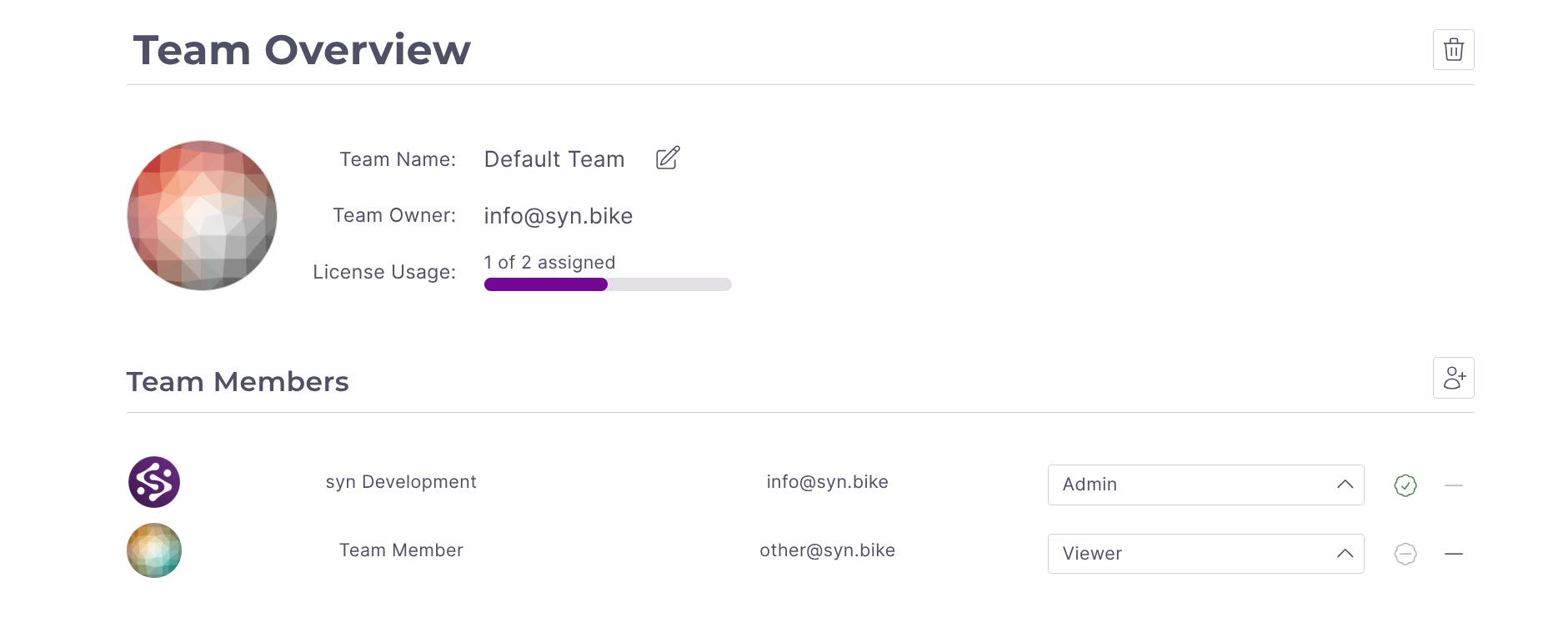
App licenses can be applied to members by pressing the License button beside their email. If successfully authorized you will see a check mark. Members not using team licenses will show an X. Licenses can be revoked by pressing the same button.
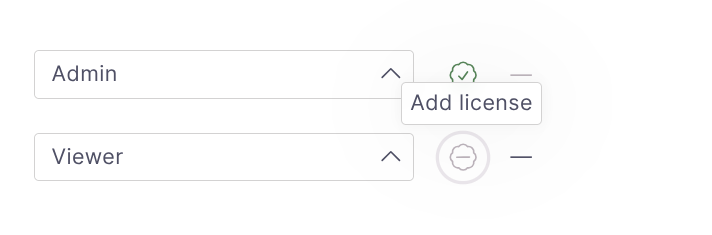
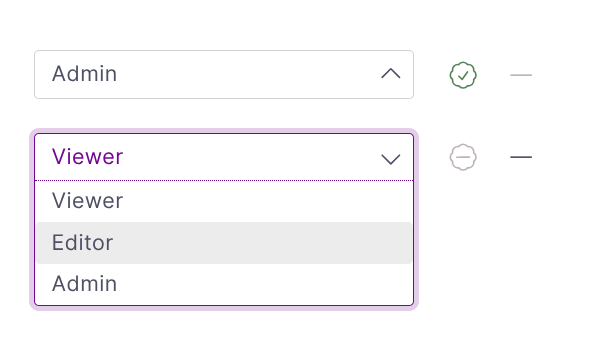
File privileges are set by entering the relevant email, selecting the appropriate permissions from the Permissions Selector and pressing Update User. Pressing the Permissions button beside the license button will autofill the user's email.
There are three user permissions options:
Viewer: User can load all files from the team database and make local changes. No files can be saved back into the team database. Copies of the files can be saved into the user's private storage.
Editor: User can load and edit files from the team database. Existing files in the team database can be overwritten and new files can be created. No files can be deleted.
Admin: Full permissions. Files can be loaded, edited, saved, and deleted. Files are deleted using the same file management dashboard used for the private databases.
Removing Users
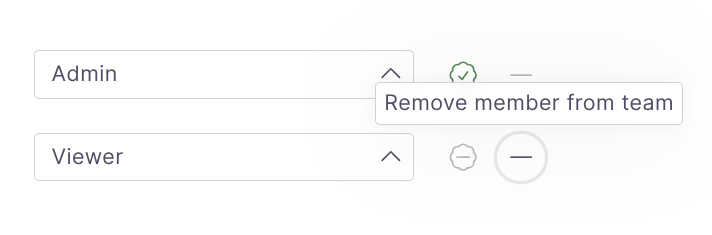
To remove a user press the relevant Remove User button. The user will be deauthorized and removed from the team. They will no longer have access to bikes in the team database. The user's private database will not be impacted.
Deleting Team
To dissolve a team the Remove all Members and Delete Team button can be pressed. A confirmation button is then shown. All members will be deauthorized and removed from the team. The admin account will be removed last before the team is deleted.
Team data is not deleted immediately and can be restored by recreating a team using the same admin account. All users will need to be re-added. Team data is scheduled for deletion after 30 days. Data can be deleted immediately using the file management dashboard prior to deleting the team.
Please contact support for any issues deleting your team. If needed all file data can be exported from the File Manager.